Connect to Your OneDrive Account
 On2Air Backups Help Center >
  Settings
You can connect your OneDrive account to On2Air to use our apps.
TUTORIAL IN PROGRESS
In this tutorial
-
Before Getting Started
-
Connect to Your Account
-
Accept Permissions
-
Rename Your Connection
-
Enable Your Connection
-
Settings
-
Delete integration
Before Getting Started
Section titled “Before Getting Started”Before connecting to your account, it’s best to first sign into the OneDrive account you want to use.
This way, it can detect the account already logged in when accepting permissions.
Connect to Your Account
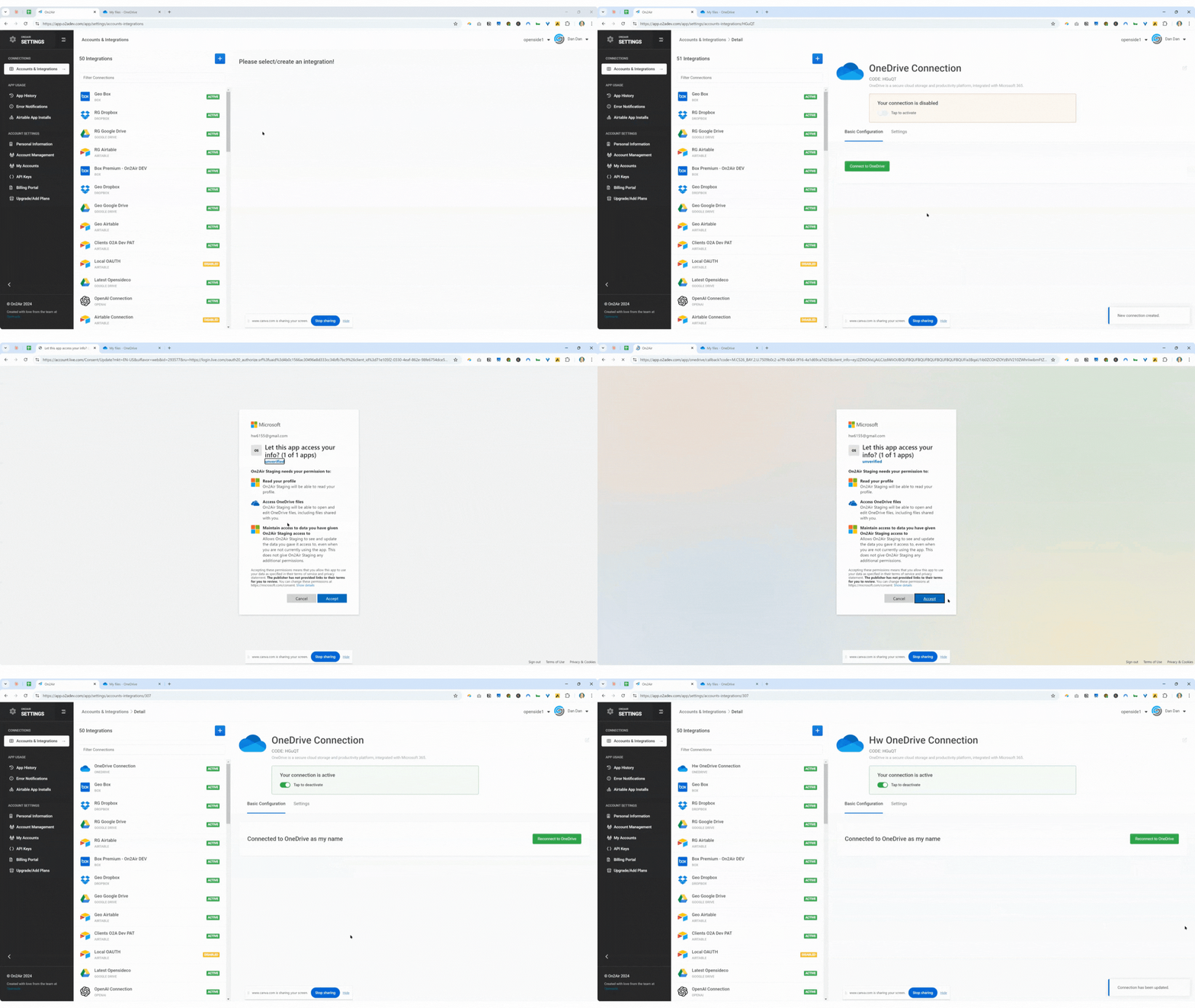
Section titled “Connect to Your Account”- Login to the OneDrive account you want to use in another browser tab
- Open Settings in the On2Air App
- Click the blue + button
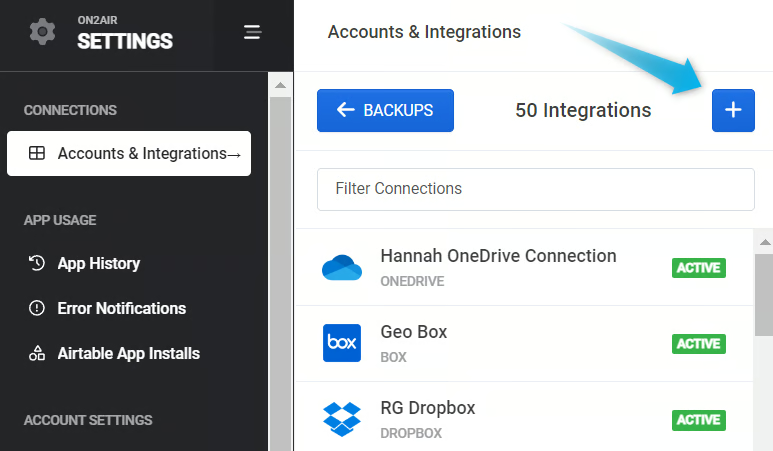
- Click Select next to OneDrive

- Select Connect to OneDrive
Accept Permissions
Section titled “Accept Permissions”- You will be presented with a permissions box you need to accept to use On2Air These will allow On2Air to interact with your OneDrive account to upload backups
- Click Accept on permissions
- The app will automatically be authenticated and you will be directed back to the On2Air app
Rename Your Connection
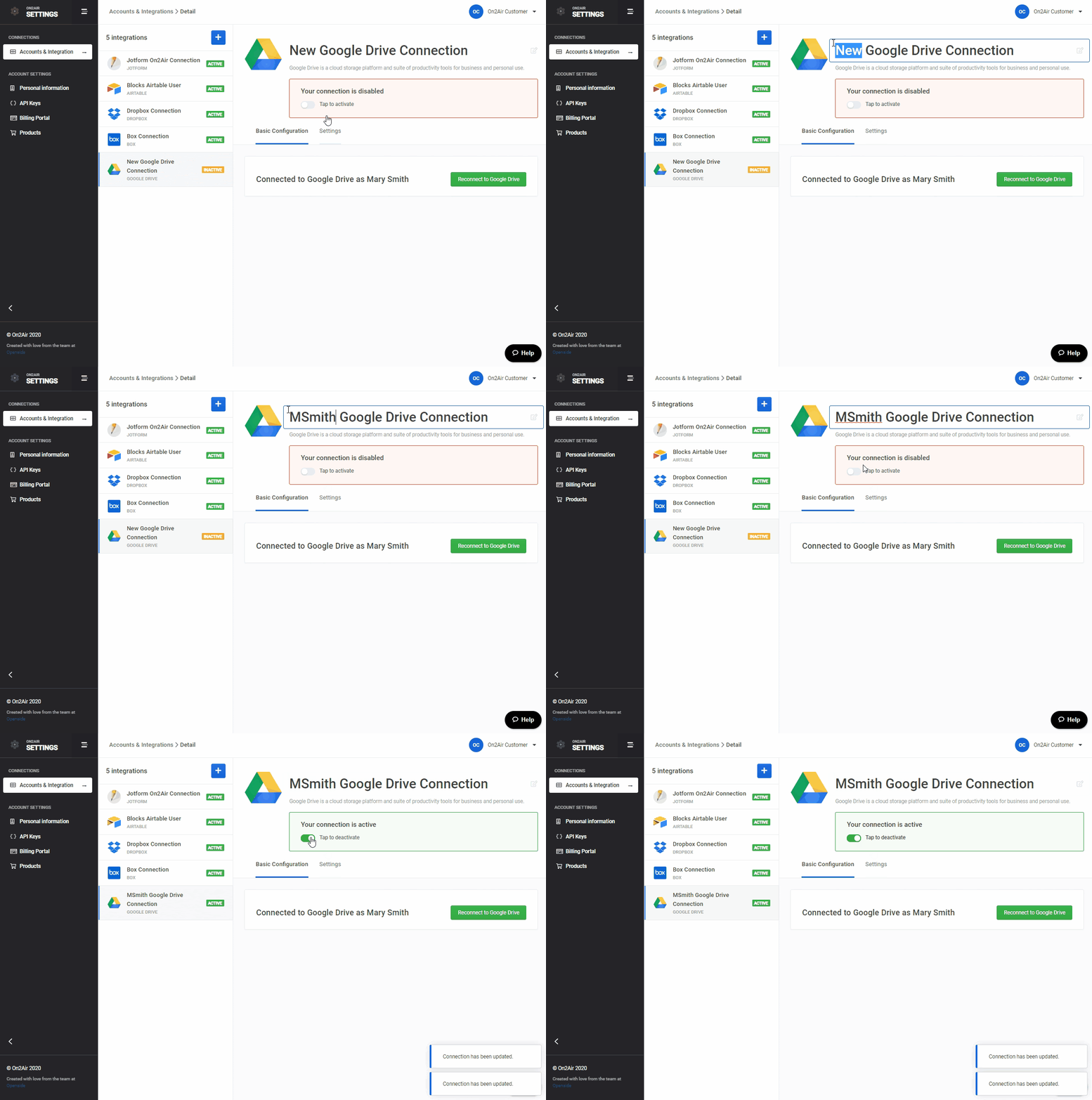
Section titled “Rename Your Connection”- Click in the title field and rename your connection
Enable Your Connection
Section titled “Enable Your Connection”- By default your connection will be activated
- If you need to disable, toggle the switch to gray
⚙
Back to  START HERE - Get Started with On2Air Backups
Settings
Section titled “Settings”Delete integration
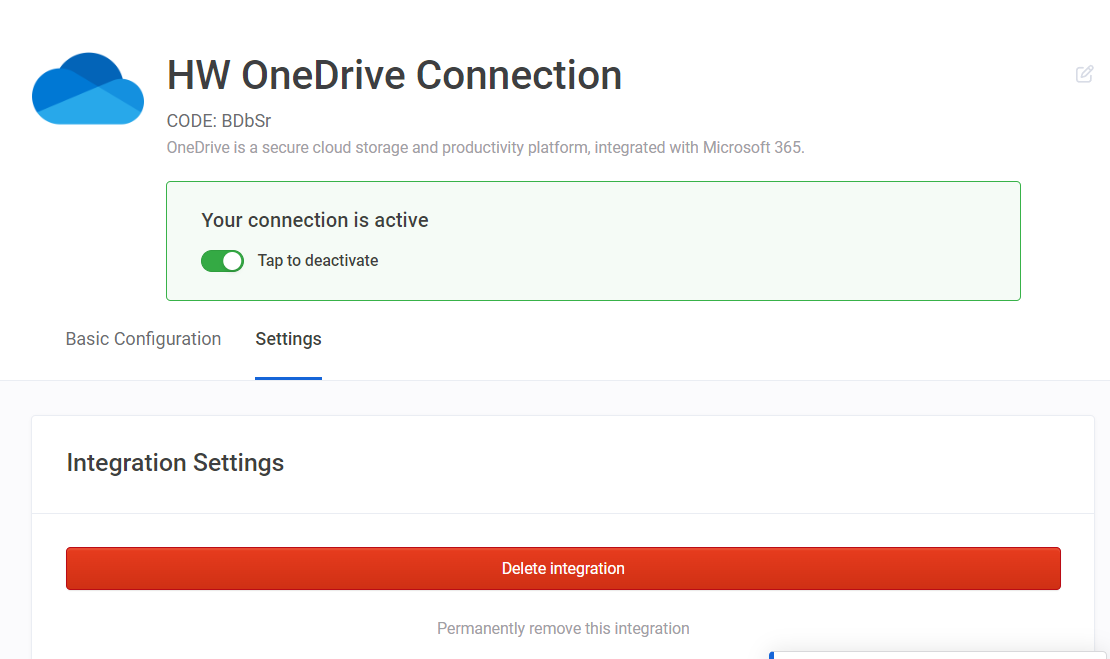
Section titled “Delete integration”- Select Delete integration to permanently remove your integration
- Click Yes, I want to delete this connection
‣
PREVIOUS