Account Management - Manage Team Member Users and Multiple Accounts
 On2Air Help Center >
  On2Air Backups Start a free trial
In On2Air, you can have multiple users on your account depending on the plan you choose. See pricing page for details.
You can also switch between multiple accounts if you need to interact with your apps as different users or if you’re part of multiple organizations.
-
User Role Types
-
To add a new Team Member
-
To edit a Team Member
-
To view all Team Members
-
Multiple User Accounts
-
Switch Between Accounts
User Role Types
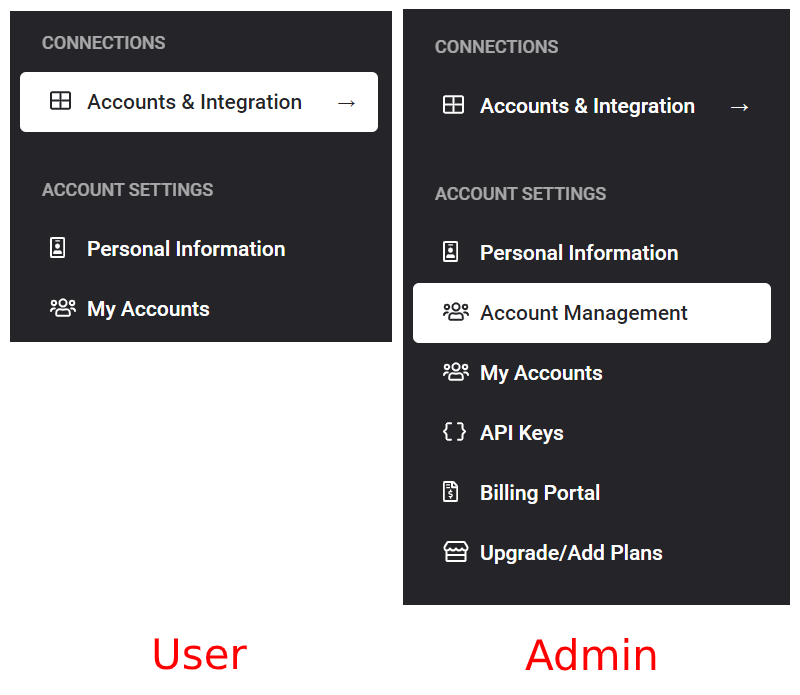
Section titled “User Role Types”- User - Can view Personal Information and My Accounts
- Admin - Can view same information as User PLUS Account Management, Billing, Plans, and API Keys
To add a new Team Member
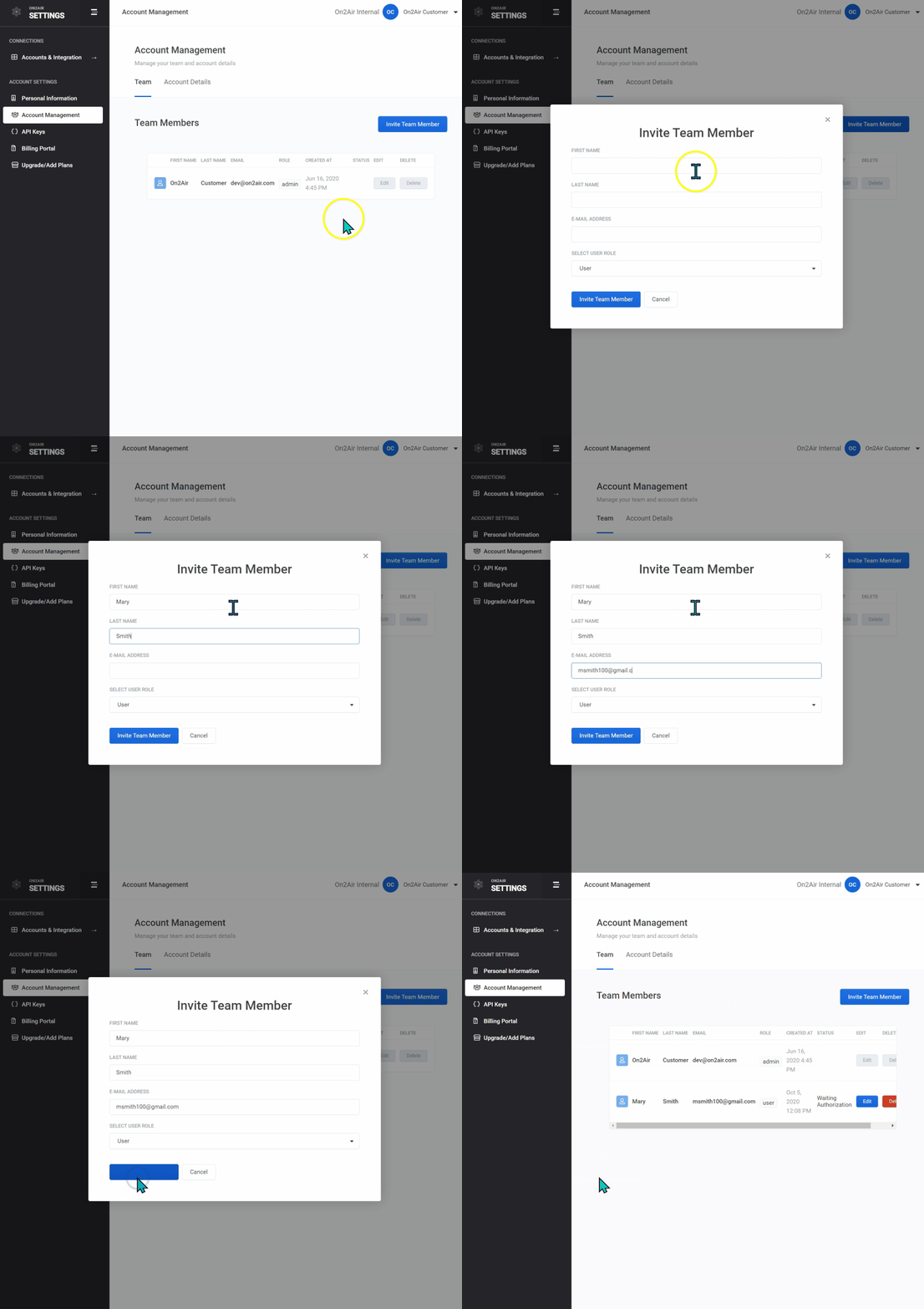
Section titled “To add a new Team Member”- Select Account Management in the Settings app
- Select Invite Team Member
- Enter a First Name, Last Name, Email Address and User Role
- Click Invite Team Member
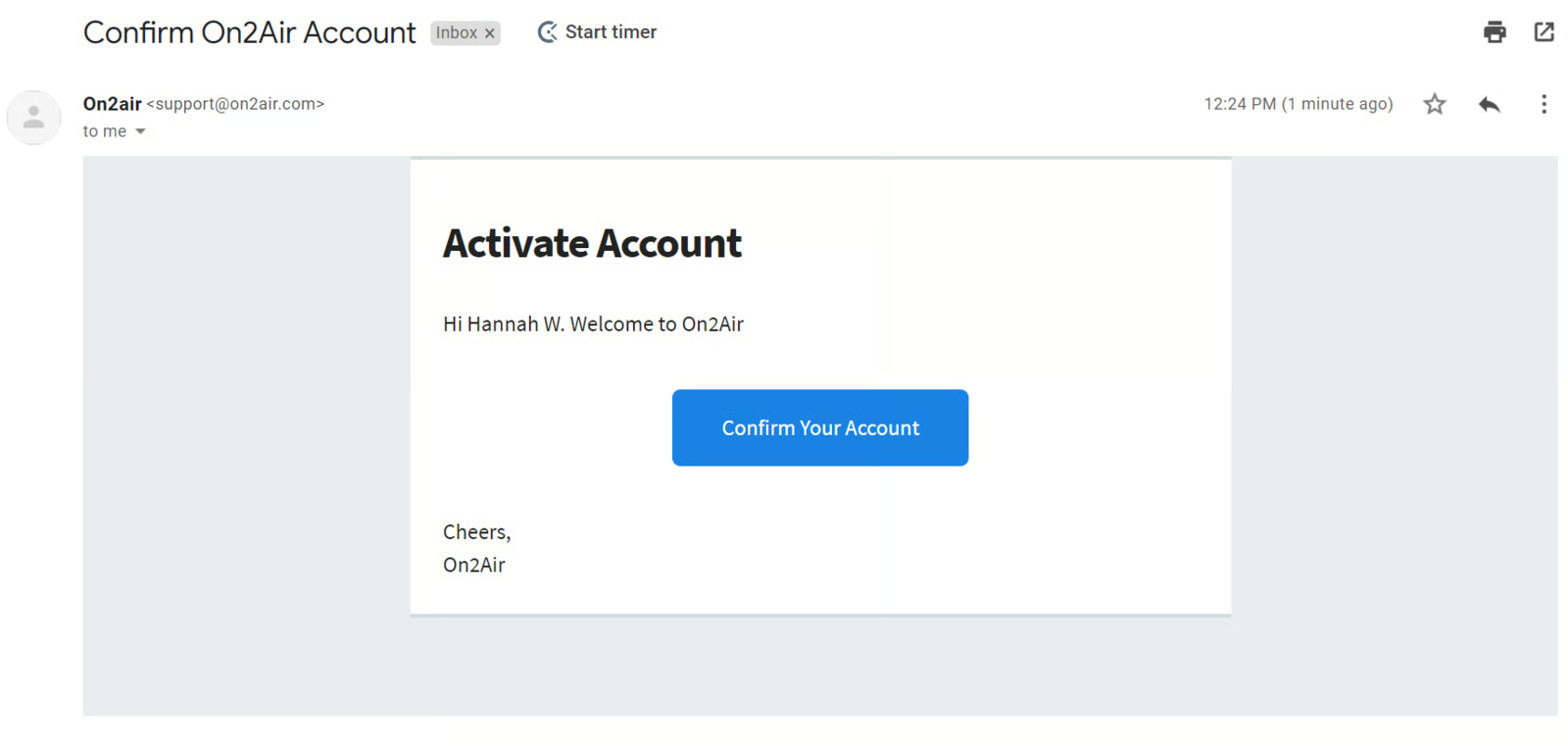
- The Team Member will receive an email to confirm their account
- Click the Confirm Your Account button in the confirmation email
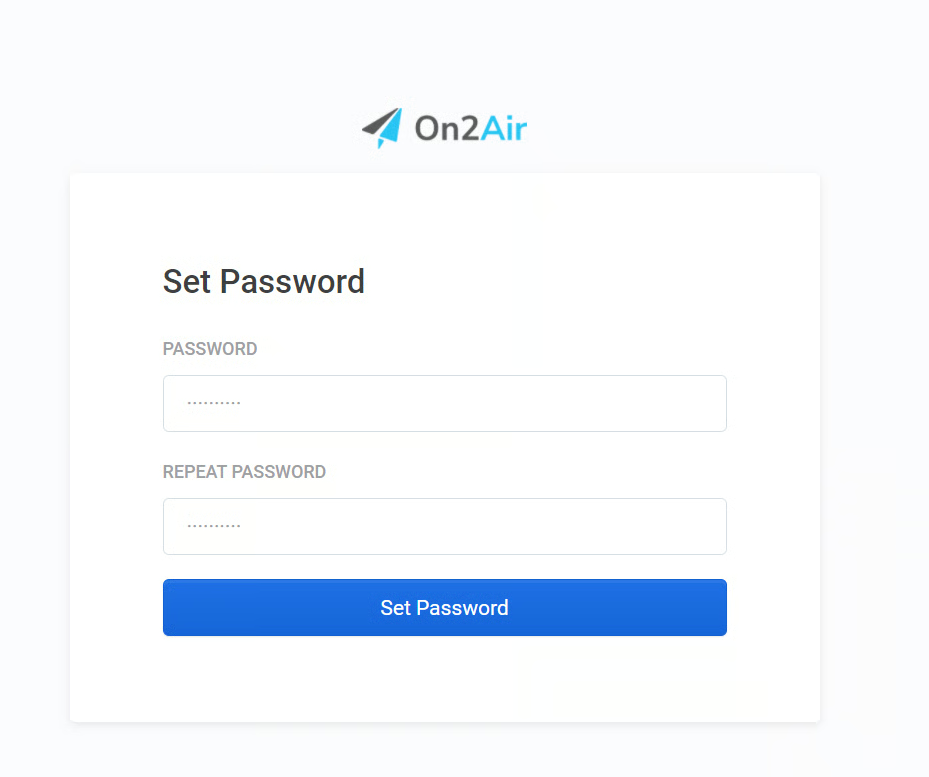
- The Team Member will then need to enter a password
- The new Team Member account will be set up
To edit a Team Member

Section titled “To edit a Team Member”- Select Account Management in the Settings app
- Click Edit next to the Team Member’s name
- Edit information such as First Name, Last Name, Email Address or User Role
- Click Update Team Member
To delete a team member
- Click Delete next to the Team Member’s name
To view all Team Members

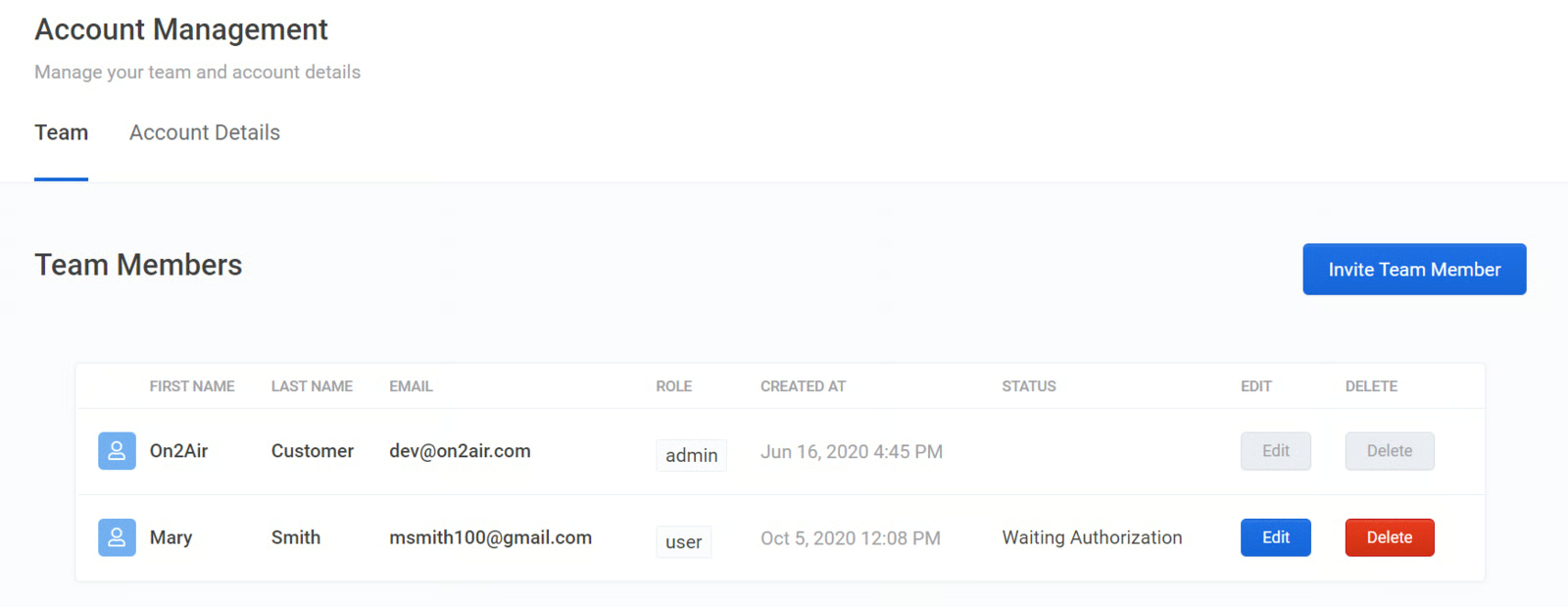
Section titled “To view all Team Members”- Select Account Management in the Settings app
- Select Invite Team Member
- Enter a First Name, Last Name, Email Address and User Role
- Click Invite Team Member
Multiple User Accounts
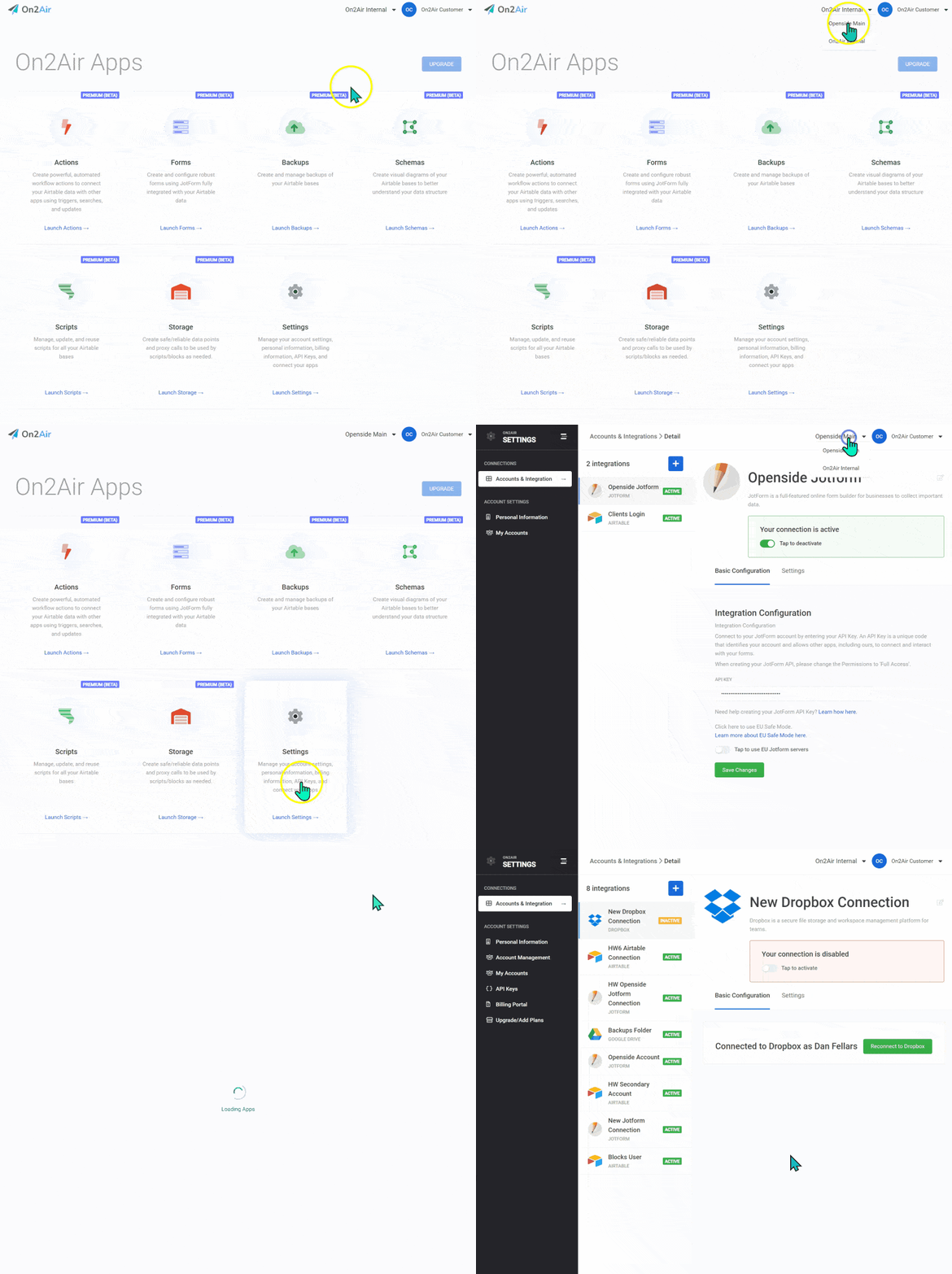
Section titled “Multiple User Accounts”If you’re part of multiple organizations or need to interact with your apps as different users, you can switch between accounts.
Switch Between Accounts
Section titled “Switch Between Accounts”If you have multiple accounts, you can easily switch between accounts.
At the top of the screen in any app
- Click your account name
- Choose the account you need